Trying to sync your iPhone contacts to Google account? Look no further; this article the complete guide to syncing your iPhone contacts to Google.
If you are looking for a simple way to trasnfer your iPhone contacts to your Gmail account instead, have a look at this page: How to transfer iPhone contacts to Gmail?
Syncing iPhone Contacts to Google using CardDAV (only iOS 6 +)
This method of syncing iPhone contacts to Gmail is only possible if you have an iOS device running iOS 6 or above. Google recommends using this method over syncing your iPhone contacts over Exchange. Syncing over CardDAV provides more accurate synchronization between your Google contacts and your iPhone providing real-time two-way synchronization. The only caveat is that CardDAV does not support Push and uses Fetch only. You can find out more about Push vs. Fetch,here.
Here are the steps of how to sync your contacts over CardDAV with your Google account:
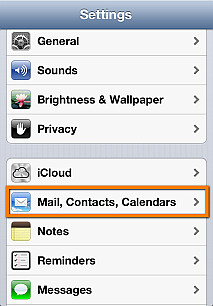
1. On your iPhone tap through Settings > Mail, Contacts, Calendars
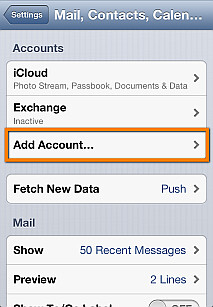
2. Next, tap “Add Account”
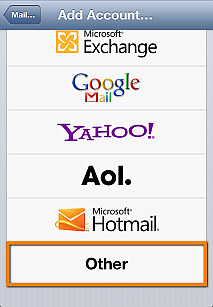
3. Now, tap “Other”
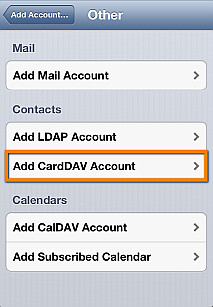
4. Next, select “Add CardDAV Account”
5. Enter your Google account details using your full email address for your “User Name” and “google.com” for “Server”

6. Let your account details get verified
If you receive the “Cannot Connect Using SSL” prompt, simply tap “Continue”
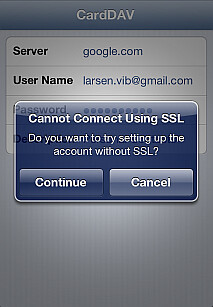
If you receive the “CardDAV account verification failed” prompt, tap “OK”

You will be taken you to the account screen. Tap “Advanced settings” and put “Use SSL” to “OFF”, ensure that the “Port” is set to “80”.
Finally, your new sync account will appear within your Mail, Contacts, Calendars screen on your iPhone.
This is how to sync your iPhone contacts to your Google account via CardDAV.
Synchronizing iPhone Contacts to Google using Exchange
This method is the classic way to go if you are trying to sync your iPhone contacts with your Google (Gmail) account. The disadvantage of Exchange over the above CardDAV protocol is that sync is not truly two-way. For example in certain cases, after you sync over Exchange, if you choose to edit a contact on your iPhone, some of the contact data for that entry might become corrupted on your Google account.
Exchange sync works on all iOS versions.
Here is how to sync your iPhone contacts over Exchange to your Google account:
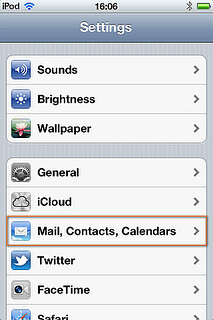
1. On your iPhone tap through Settings > Mail, Contacts, Calendars
2. Next, tap “Add Account”
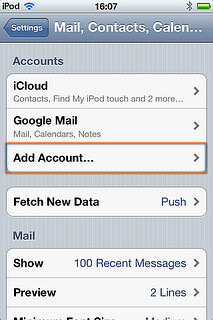
3. Now, tap “Exchange”. Do not tap “Google Mail” since with this option, you can only sync your email and calendars, but not contacts
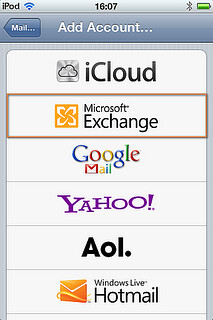
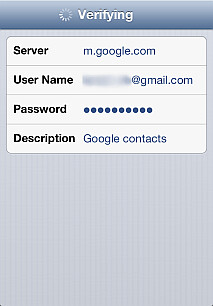
4. Enter your Google account details. Make sure you enter your full email address associated with your Google account in the “Username” field

5. From the next slide, type “m.google.com” in the “Server” field

Finally, your new sync account will appear within your Mail, Contacts, Calendars screen on your iPhone.
This is how to sync your iPhone contacts to your Google account via Exchange.
For more information about using Google sync with your iPhone contacts, mail, and calendars, have a look at the following page: Sync your mail, contacts, calendar, and more.
For a quick video explaining how to put Google sync to use in order to have your iPhone contacts synced to your Gmail account, have a look at the video below:


